Uploading Assets into Room
Accessing files
When you select Model Viewer, PDF, or Photo Viewer; Figure 1 will appear:
Select upload and navigate to the file that you want to upload (Figure 2)
Model Viewer: Allows zip files of the file type:
DAE (1.5), OBJ, STL, 3DS, BLEND, LWO, LWS, B3D, SMD, PLY, X, DXF, FBX (2013), glTF (1.0)
PDF: Only allows .pdf files to be selected
Photo Viewer: Only allows for .png and .jpg files to be selected
If the following appears, the files have been successfully uploaded
Model Viewer: Figure 5
PDF: Figure 3
Photo Viewer: Figure 4
The following features have tools associated with them when being used
PDF and Photo Viewer: There is a tool bar that can adjust the view of the files as well as the zoom
Model Viewer: The 3D object can be moved along the XYZ plane by interacting with the red, blue or green arrow. Also, the object can be rotated or deleted using the buttons next to the uploaded file (Figure 6)
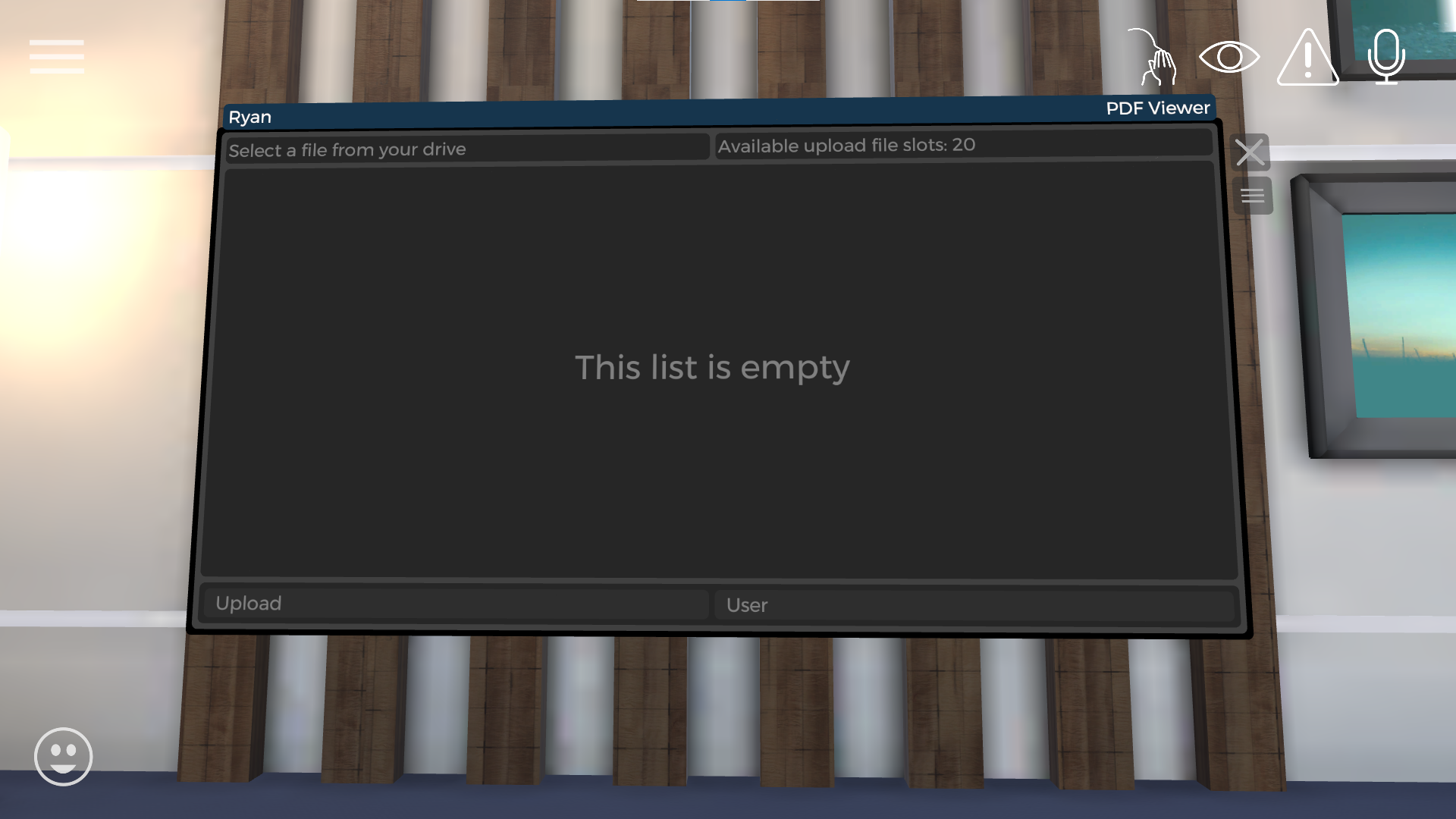
Figure 1
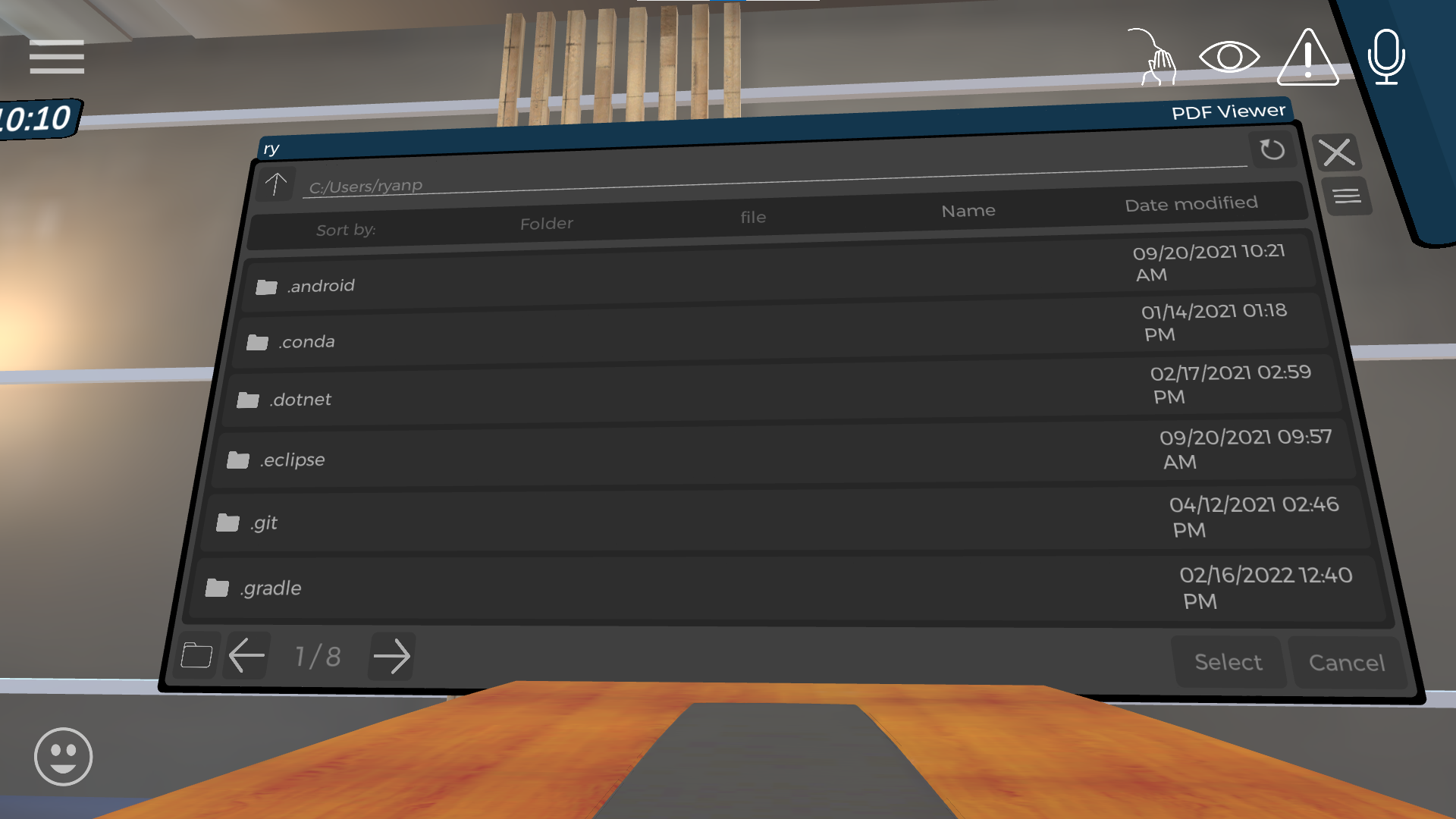
Figure 2
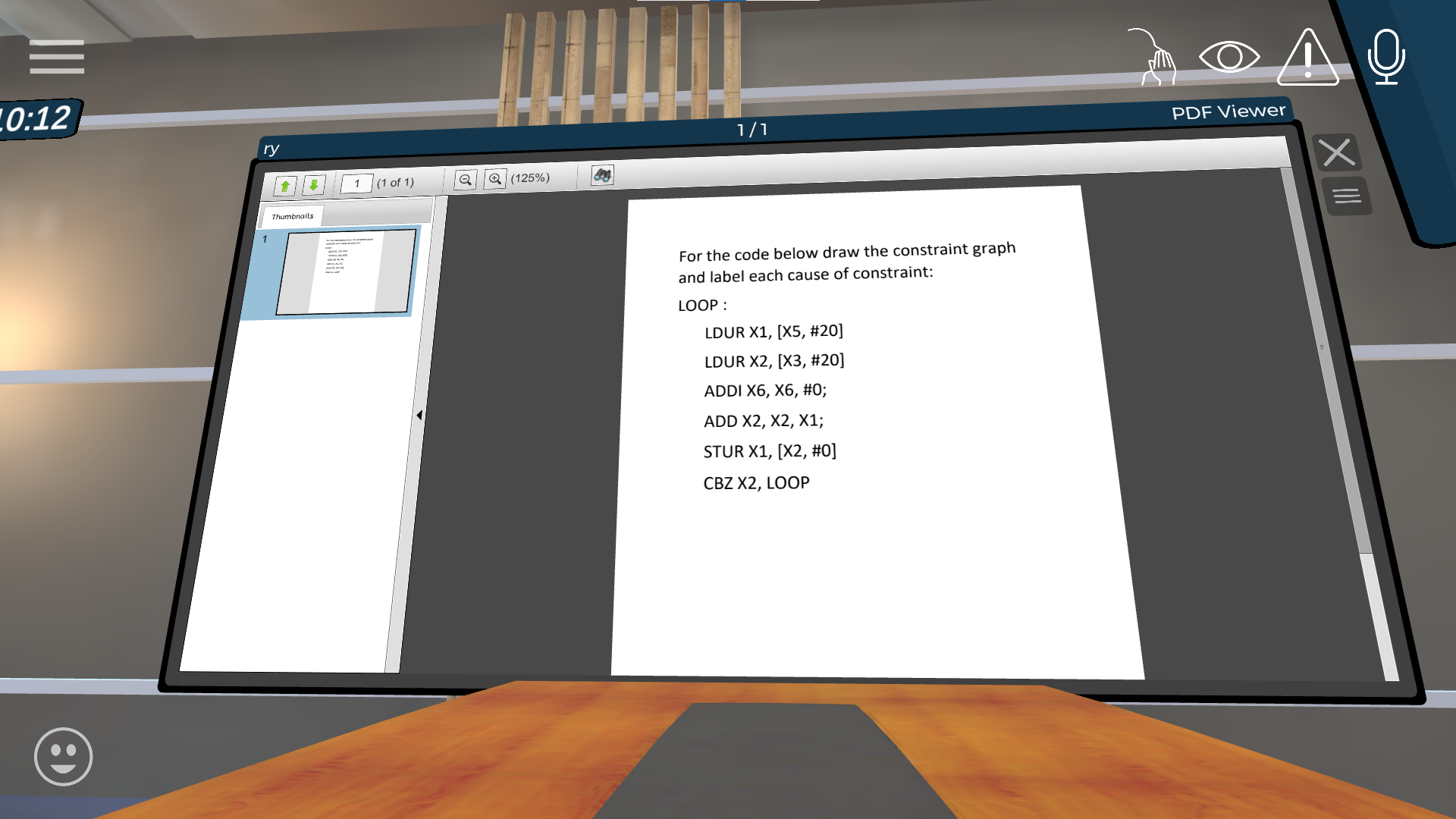
Figure 3
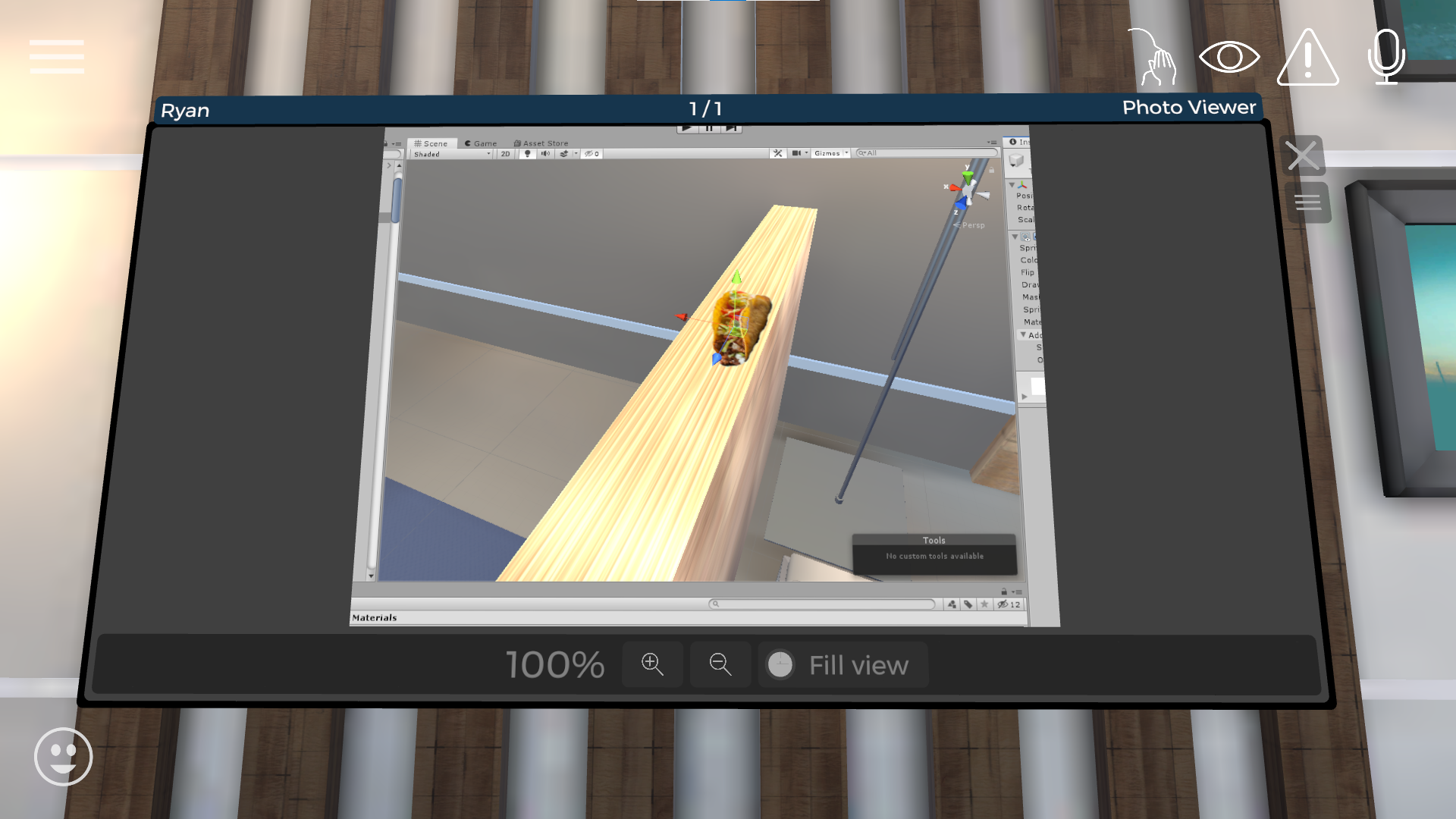
Figure 4
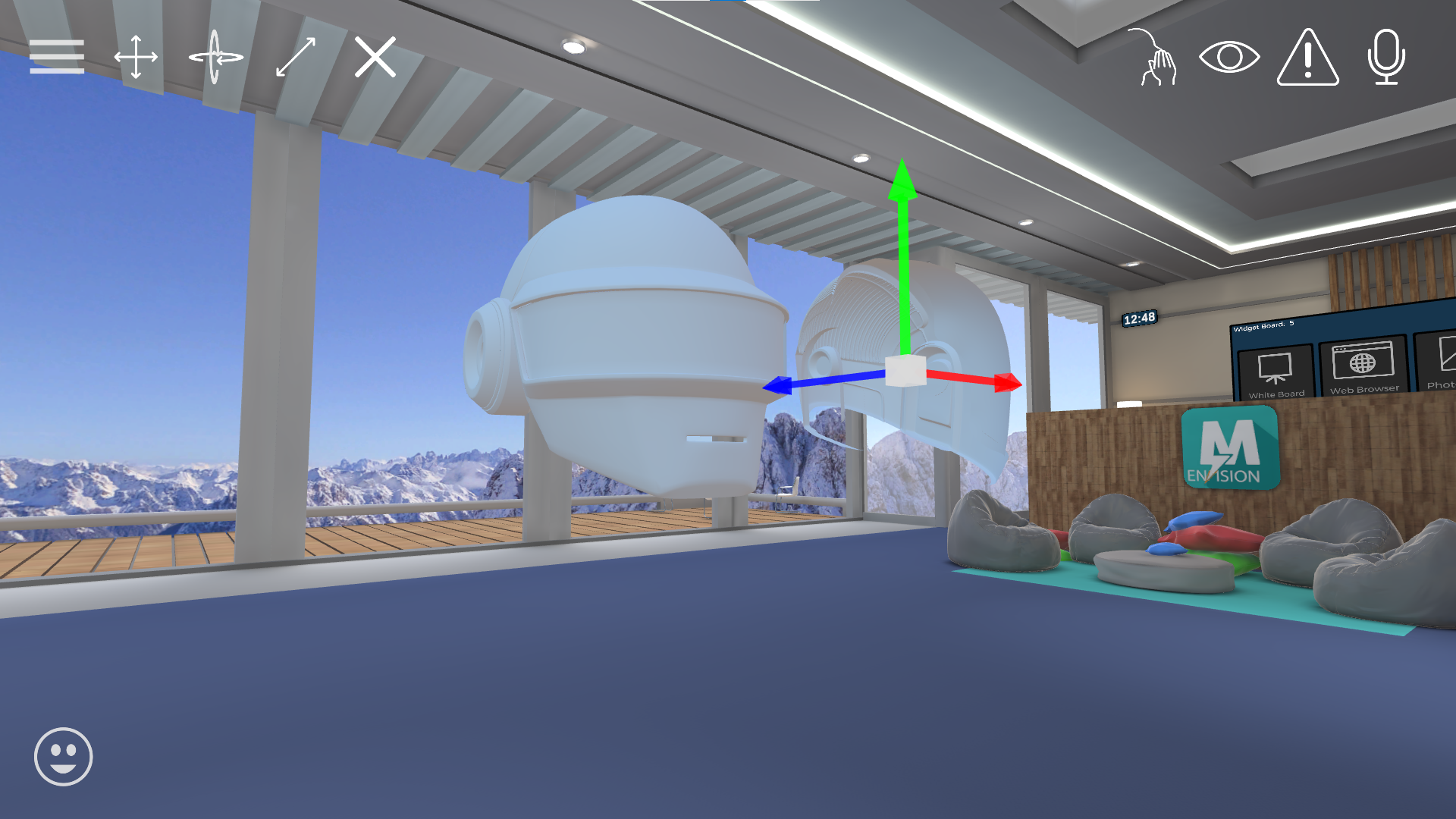
Figure 5
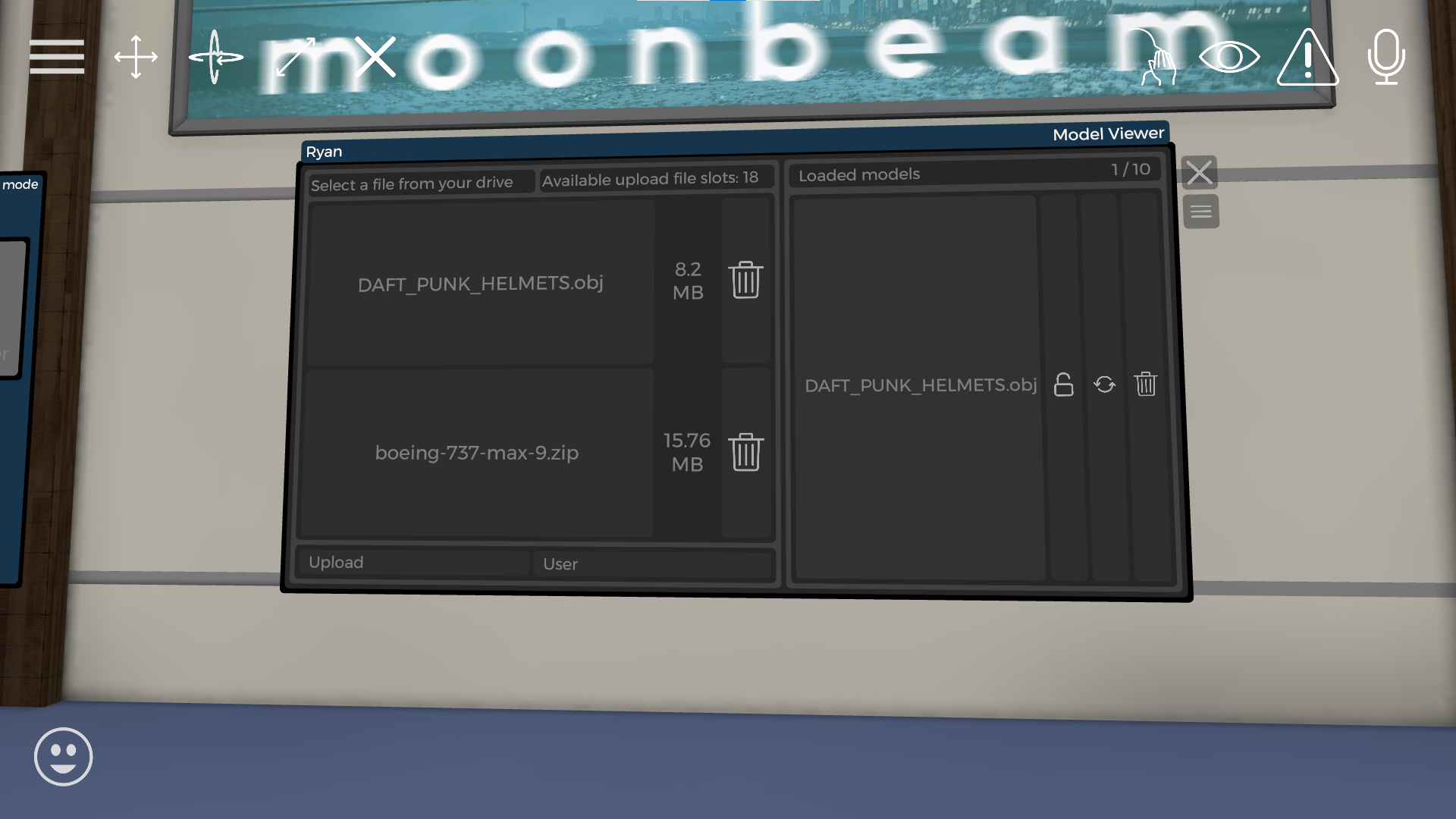
Figure 6
Preparation for Oculus Quest/Quest 2
Connect the Quest to your computer of choice using a usb-c cable
You will be prompted with a permission prompt on your headset that says “Allow access to data”, press “Allow”
Go to the file explorer and select Oculus -> Internal Storage -> Downloads
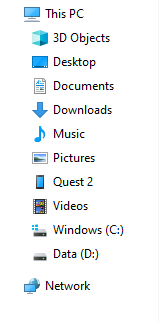
Figure 7

Figure 8
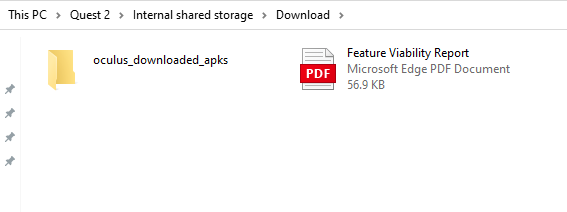
Figure 9
Place any downloaded files of the following types:
Model Viewer: Allows zip files of the file type:
DAE (1.5), OBJ, STL, 3DS, BLEND, LWO, LWS, B3D, SMD, PLY, X, DXF, FBX (2013), glTF (1.0)
PDF: Only allows .pdf files to be selected
Photo Viewer: Only allows for .png files to be selected
Follow steps from “Accessing files in game” to access uploaded file in game
Note: Quest file path will start from “/sdcard” and can follow down the file path to the downloads folder