In-Game Menu
This section will refer to the menu when inside a room.
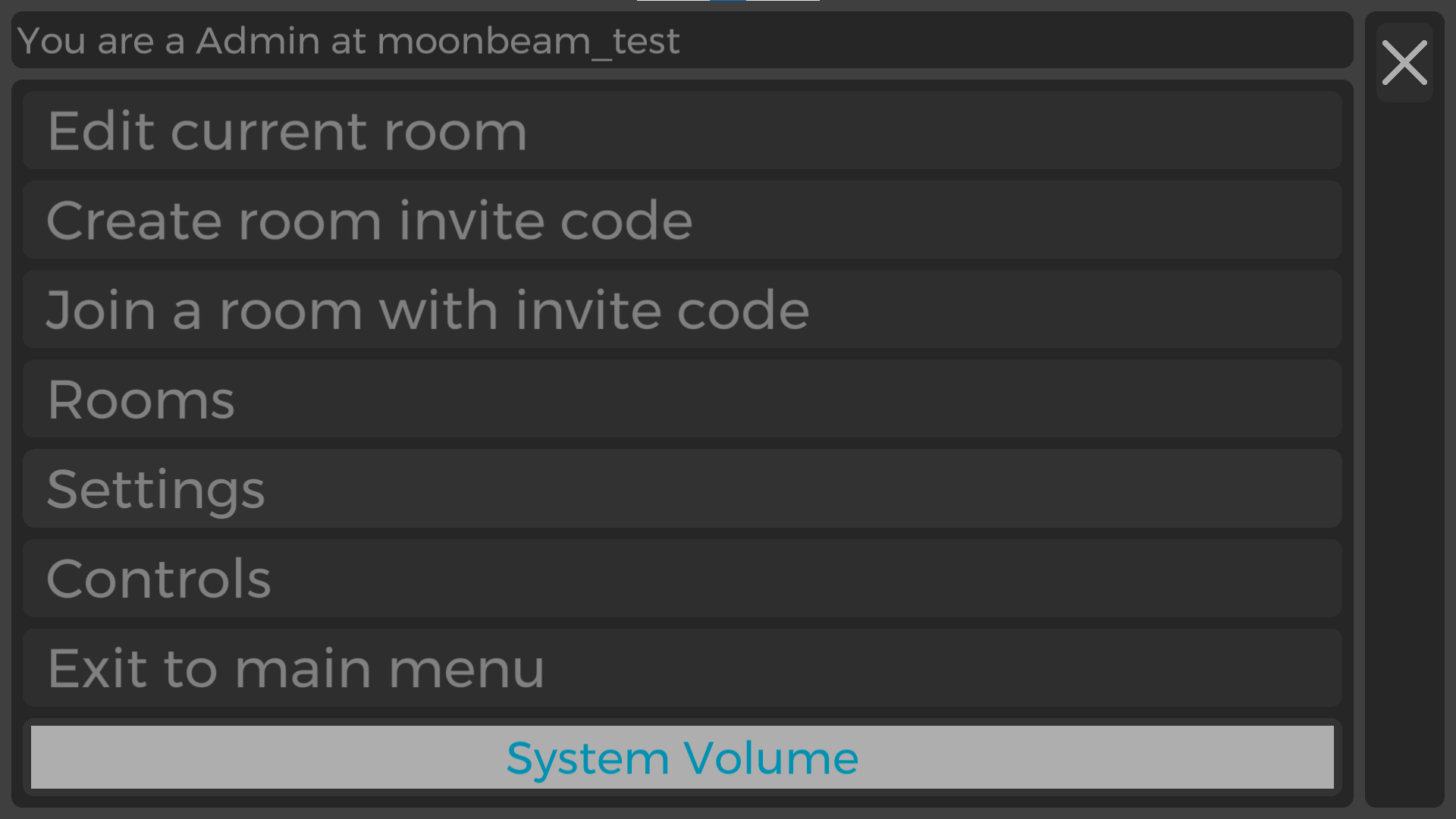
Figure 1
Edit current room |
Can change room mode and the vista view (Figure 2) |
Create room invite code |
Create an invite code so that guest can join the room (Figure 3) |
Join a room with invite code |
Join a different room using a room code |
Rooms |
View list of user’s rooms. Join a different room if selected |
Settings |
In game settings including audio controls and view controls (Figure 4) |
Controls |
Shows the controls for the device being used |
Exit to main menu |
Exit the room and go back to the main menu |
Edit Current Room
Room Mode:
Lecture mode has one speaker where voice is relayed to everyone
Discussion mode allows all users to have spatial hearing with other users
Vista Views:
Changes the scenery outside the room
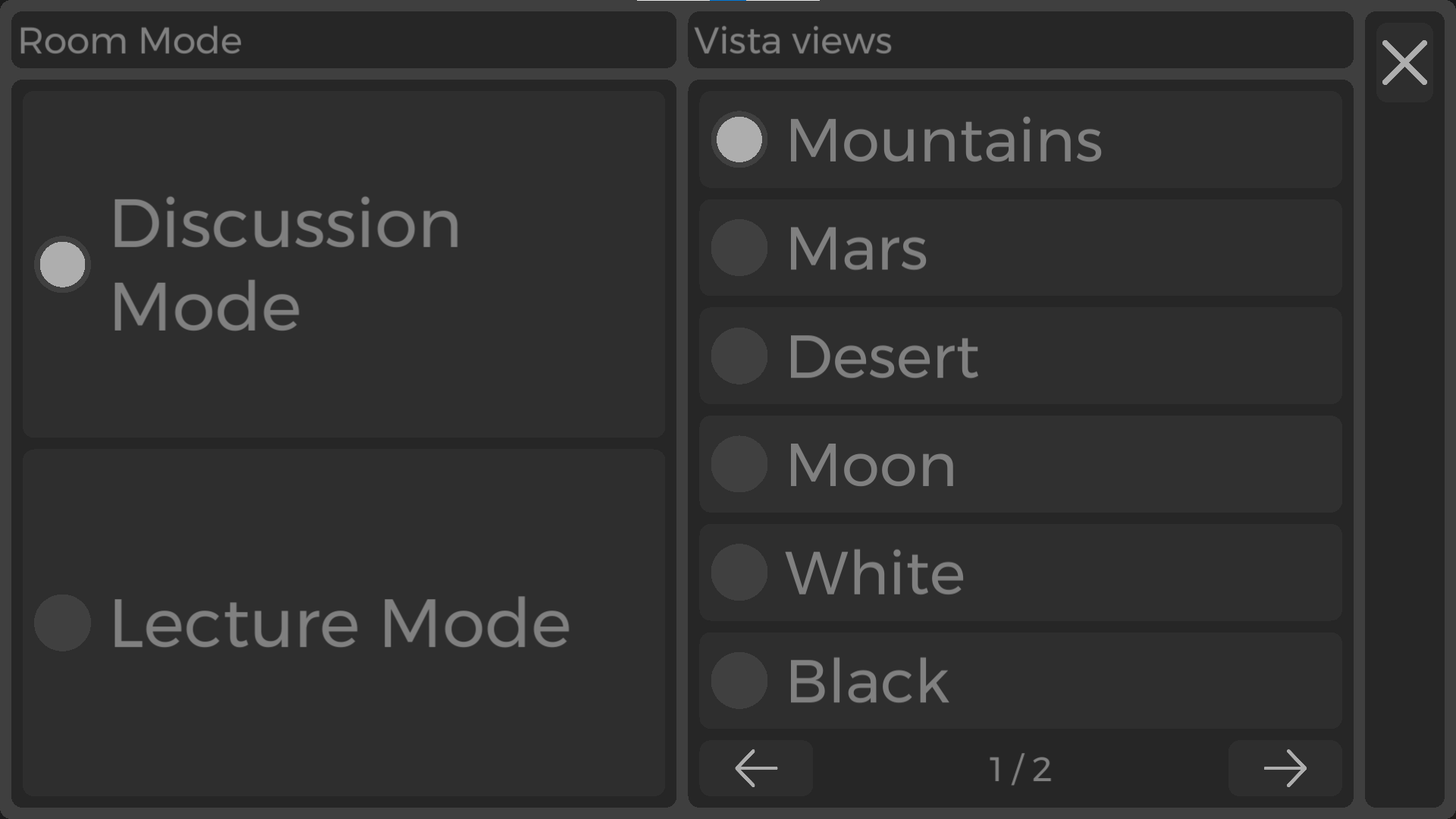
Figure 2
Create Room Invite Code
Create an invite code and allow for adjustments to how long code is available for guests in room.
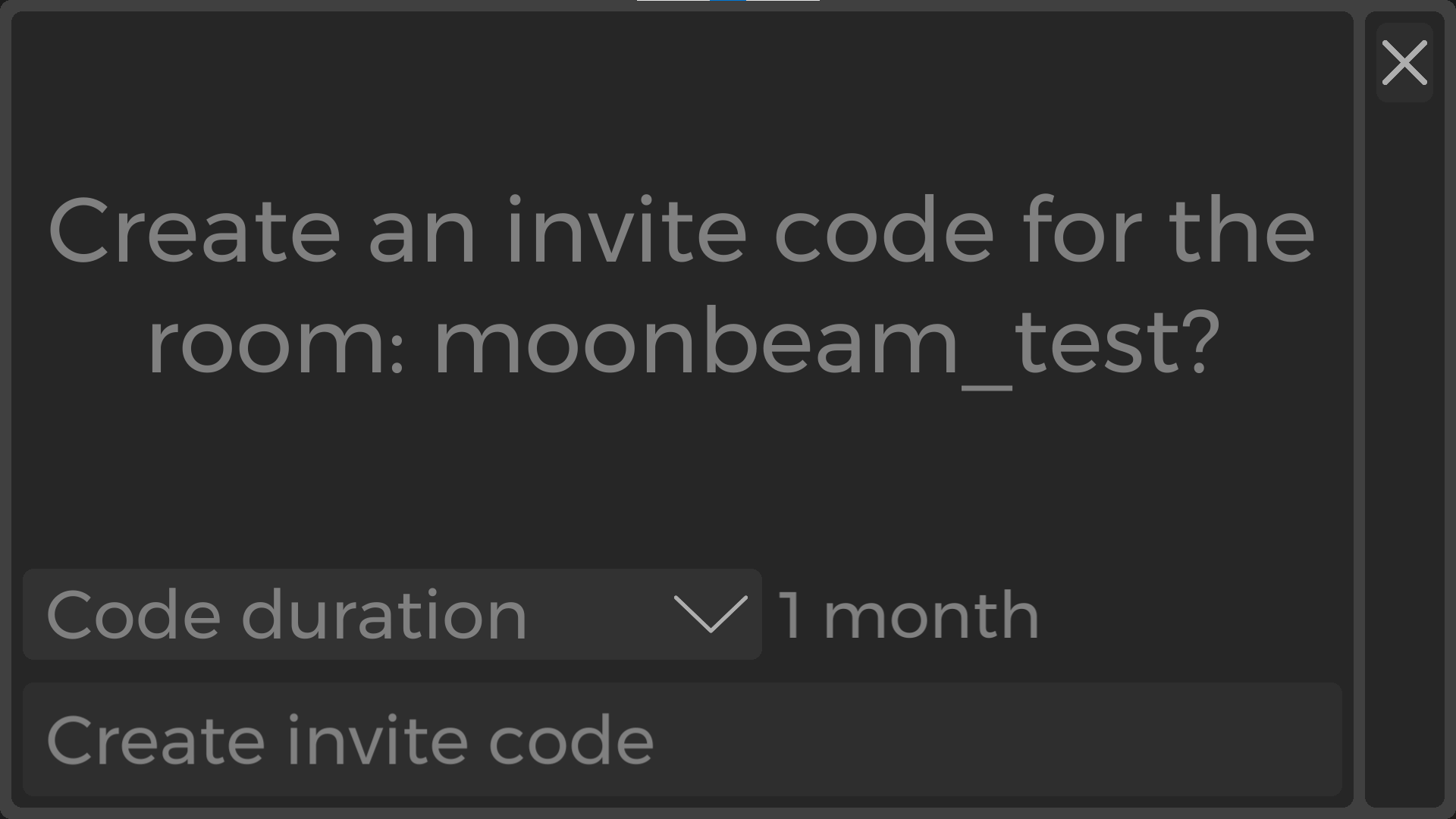
Figure 3
Audio Settings
There are two settings.
Audio input device
Change the audio input device if multiple headphones/earbuds are connected to device.
Other users’ volume
Lists all users in the room and provides ability to adjust individual user volume.
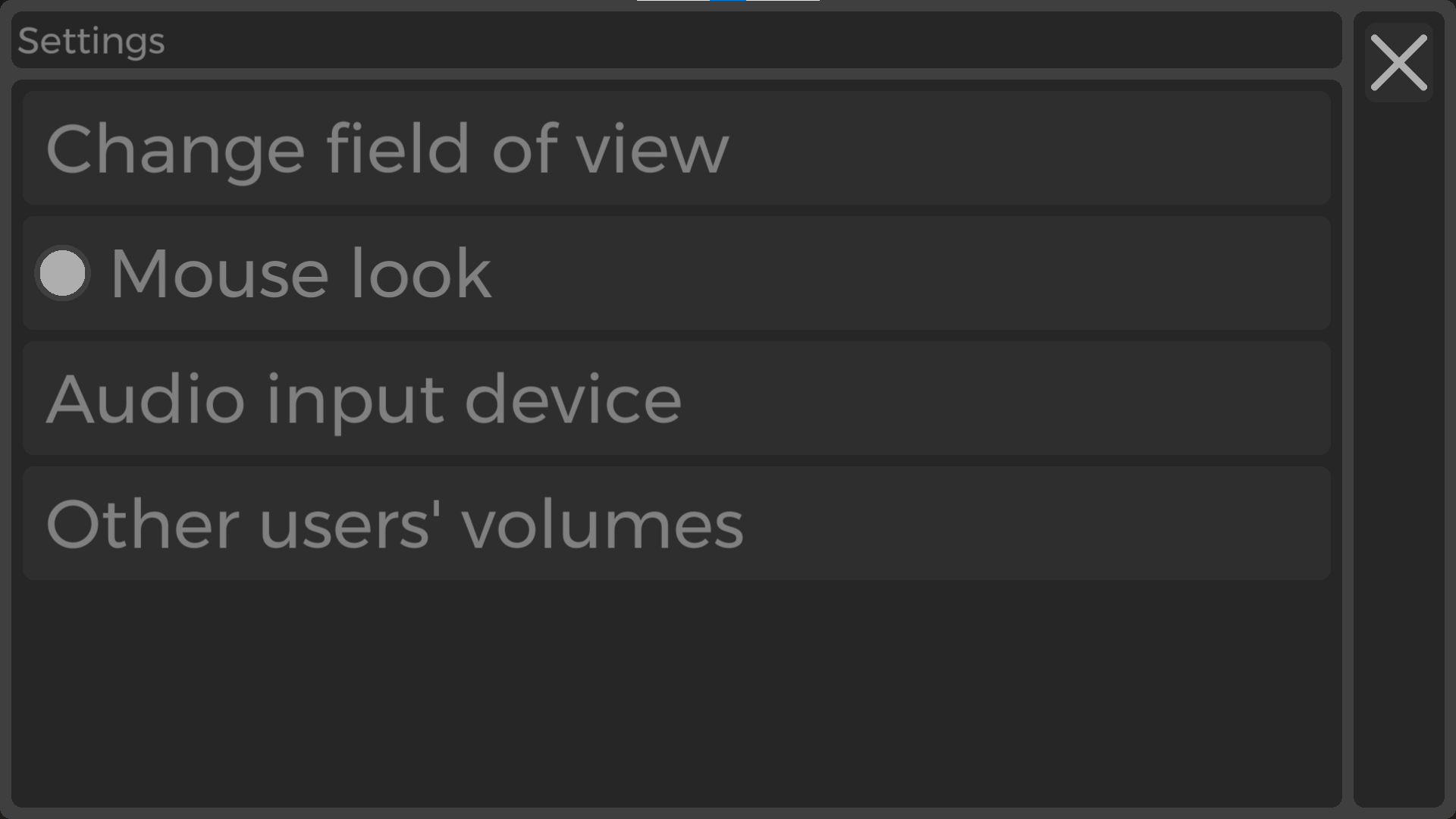
Figure 4
Closed Captioning
Closed captioning displays the audio of each player under their avatar if toggled
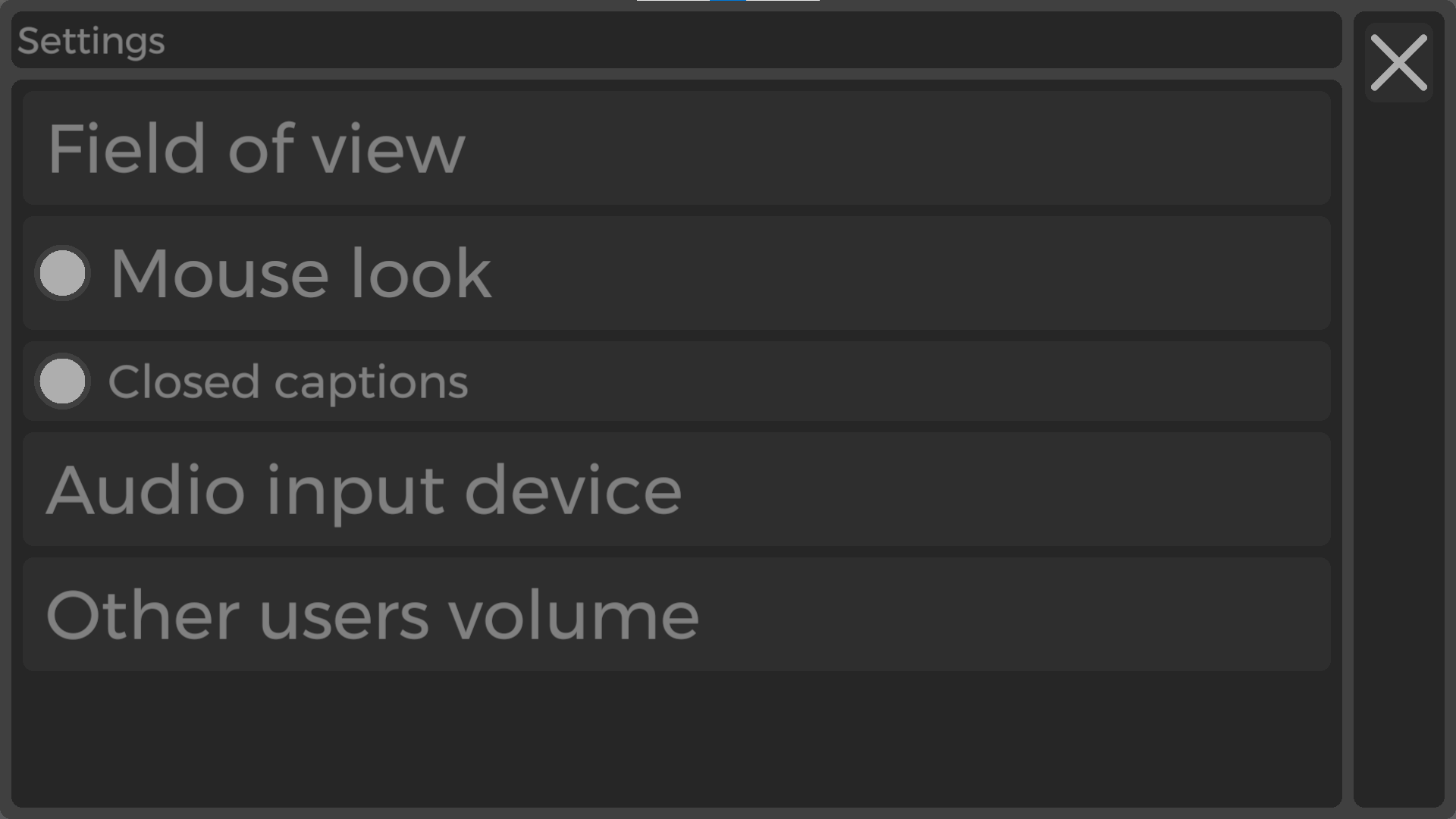
Figure 5
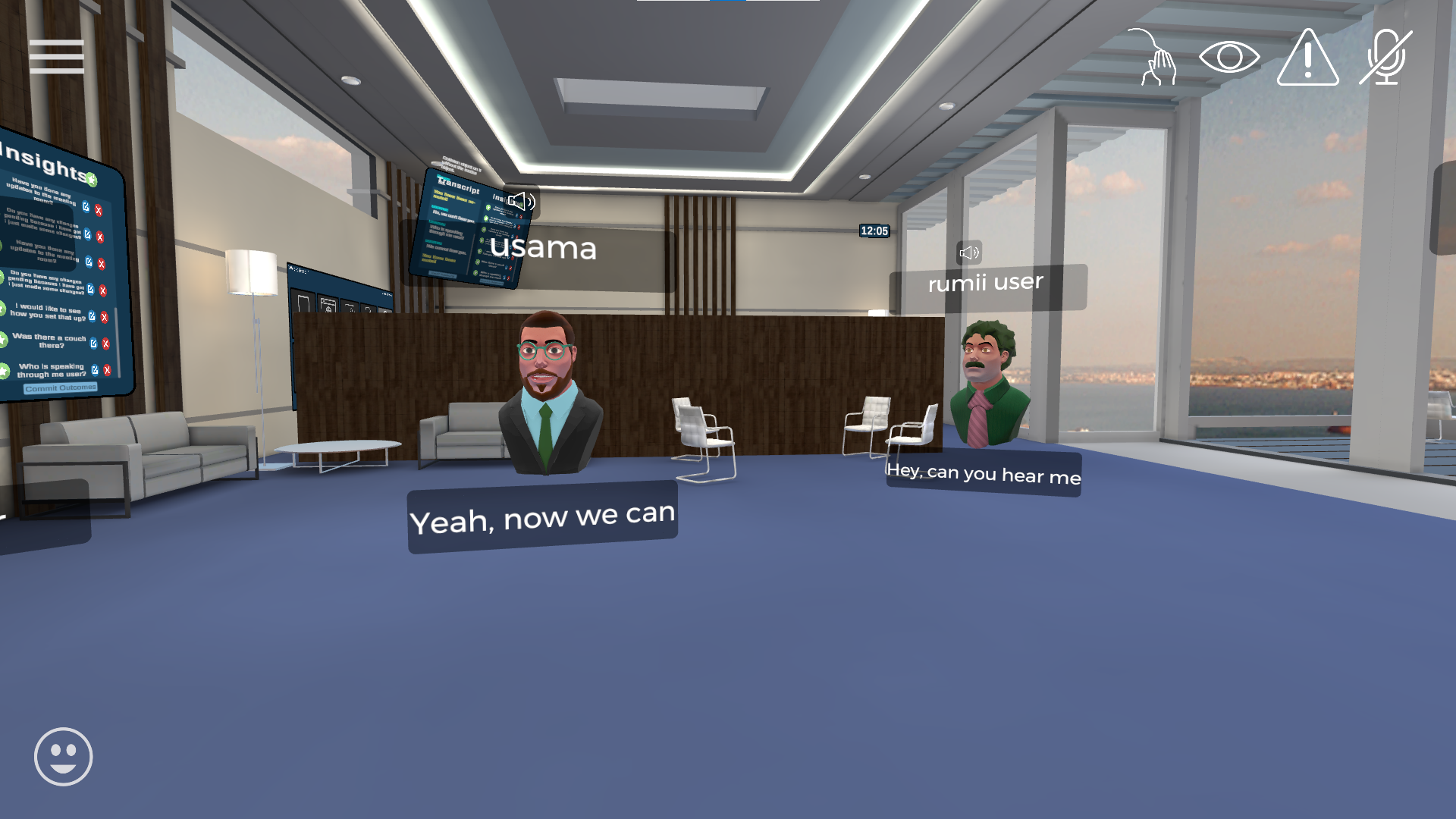
Figure 6
Other In-Game Settings
Change field of view
Changes the field of view of the user by adjusting the angle at which the user view is zoomed out
Higher degrees = wider field of vision
Mouse Look
Toggled On: Hold right click to move the user view angle
Toggled Off: Press right click once to move the user view and press right click again to fixate user view
Only exists on the Desktop Application