Creating/Joining a Room
Setting up a Meeting
Select “Schedule a Meeting” on the Main Menu
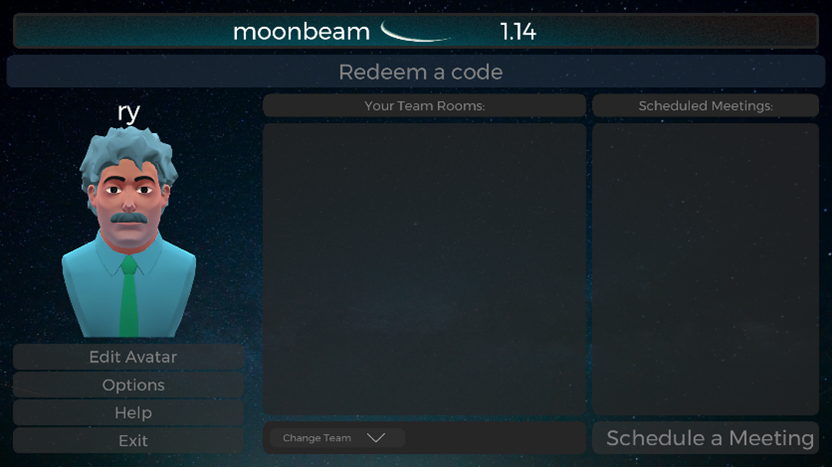
Figure 1
Fill is out the information (Name, Date, Time, Type, Region) for the room and then select “Create room” when done (Figure 2)
The rooms will remain in the user’s “Your Team Rooms:” to any member who has been given the room code. (If not visible remember to “Change Team” to the team the meeting was assigned)
To invite attendees, invitees must first have created a Moonbeam account and logged into Moonbeam at least once.
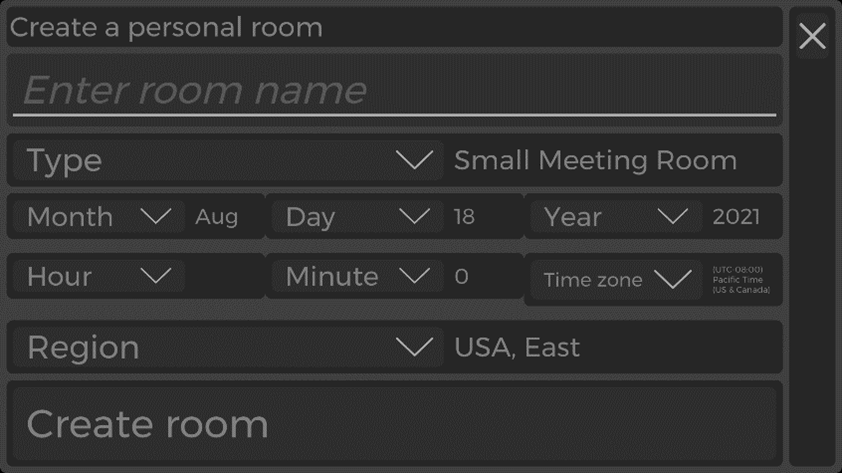
Figure 2
To Join a Room
Select “Redeem a Code” on the Main Menu screen
Redeeming a team code will assign the player into the team the code was created for, which will give access to all team rooms.
Redeeming a room code will give access to the single room until the room code expires. You will need to input the room code every time to join the room.
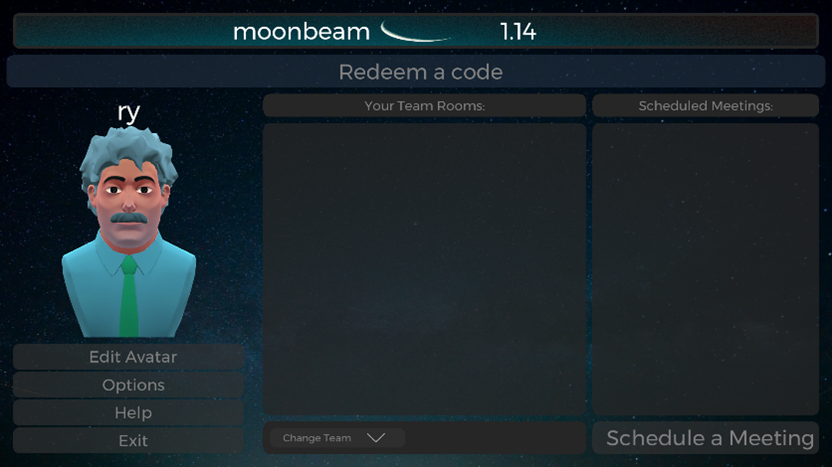
Figure 3
Enter code into the box to join new rooms
One way to create a code is by going to Options -> Manage Rooms and selectng the button in Figure 4
Another way to create a code is by entering a meeting room and following the steps in the user guide section In-Game Menu -> Create Room Invite Code
You can use a team code using the steps in the user guide section Creating a Team -> Adding Users into Team
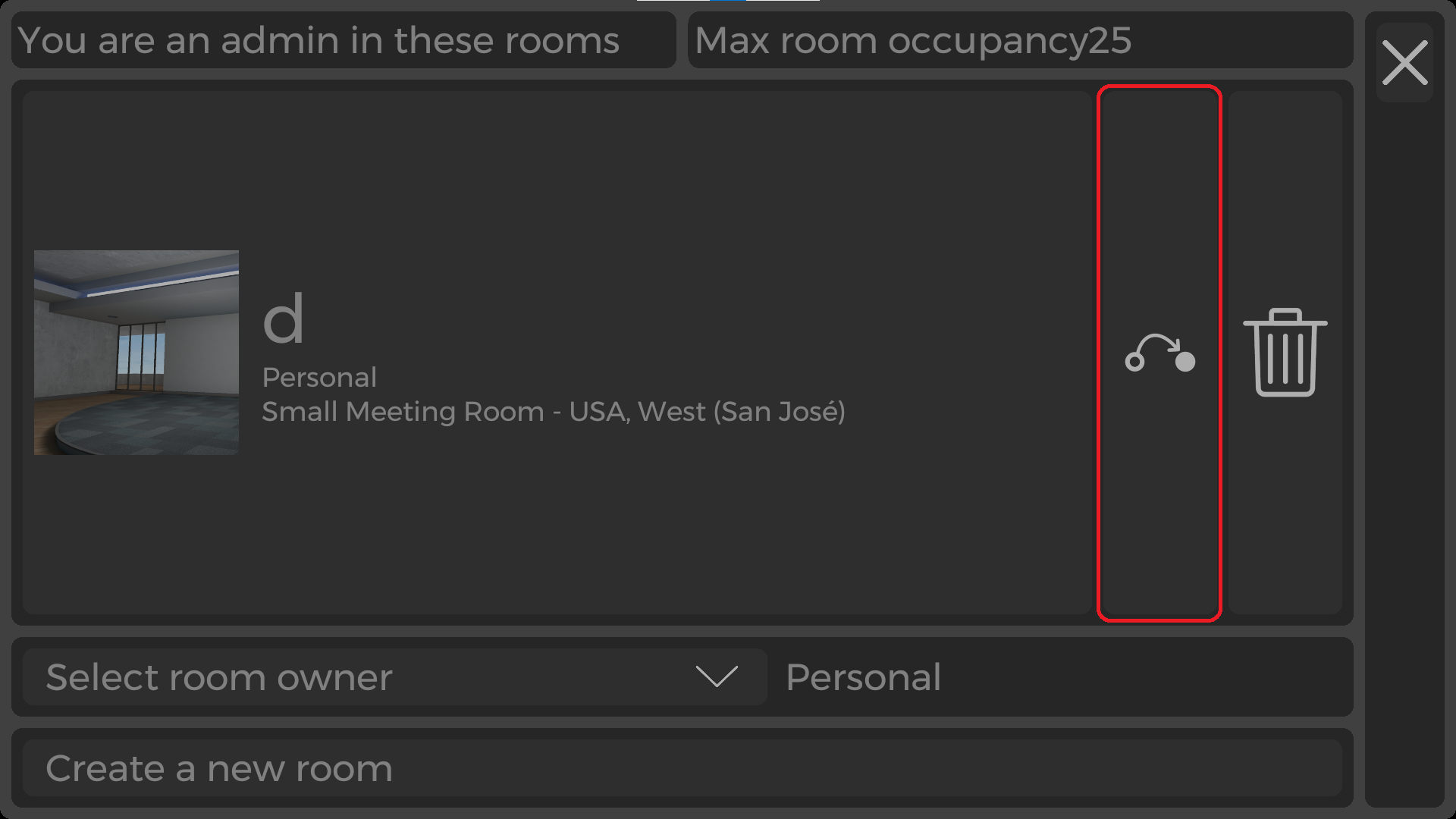
Figure 4
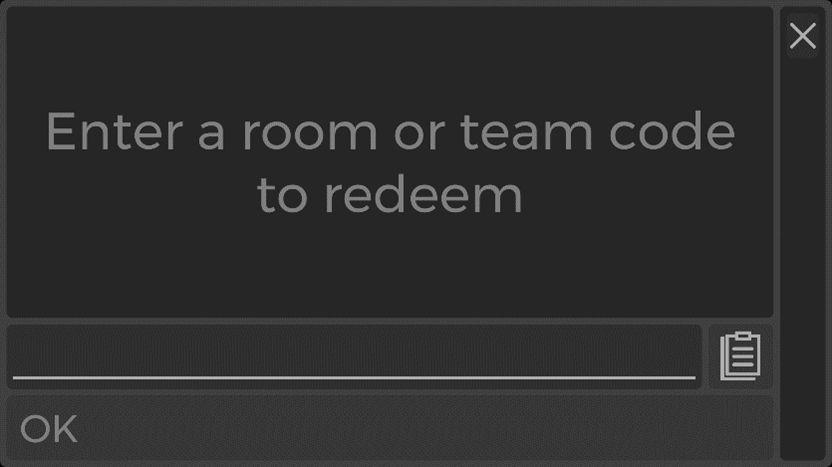
Figure 5