Creating a Team
From the Main Menu, select Options -> Manage Teams (Figure 1).
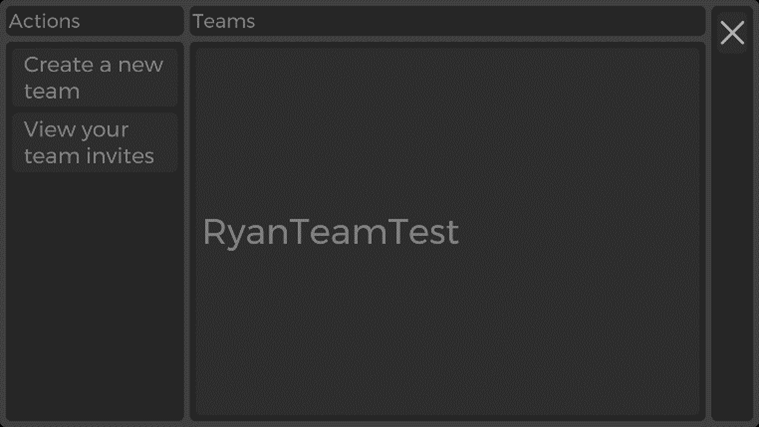
Figure 1
Select “Create a new team”
Type a new team name and then select “OK”
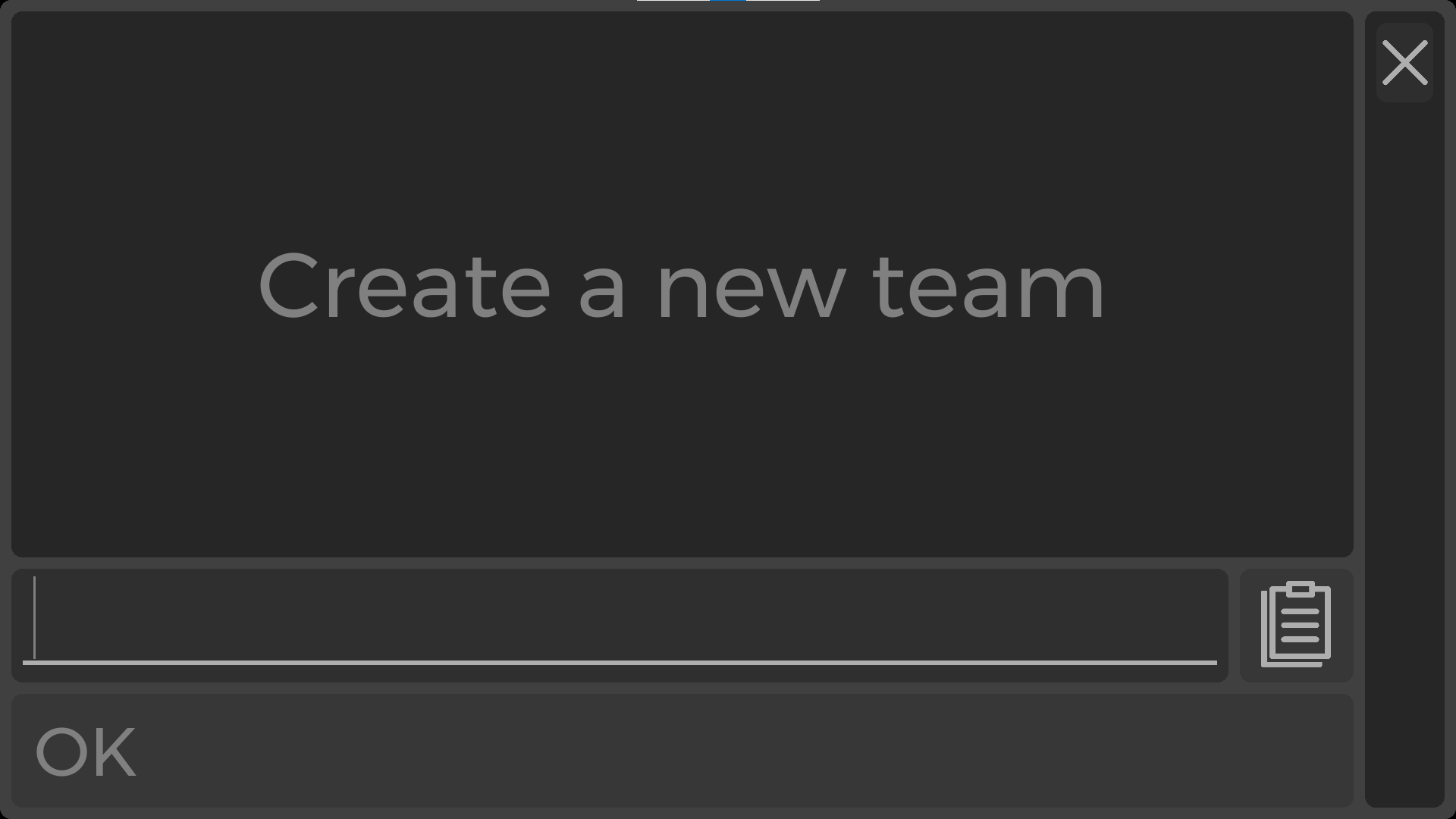
Figure 2
Adding Users into Team
Once you have created a new team you can add users in two different ways (Figure 3)
Invite a member: You can enter a user’s email or username to invite them
o If the member does not have an account with Moonbeam, they will be sent an link to the email you enter
Create invite code: You create a room code which you can share with users in order for them to Join an Existing Room
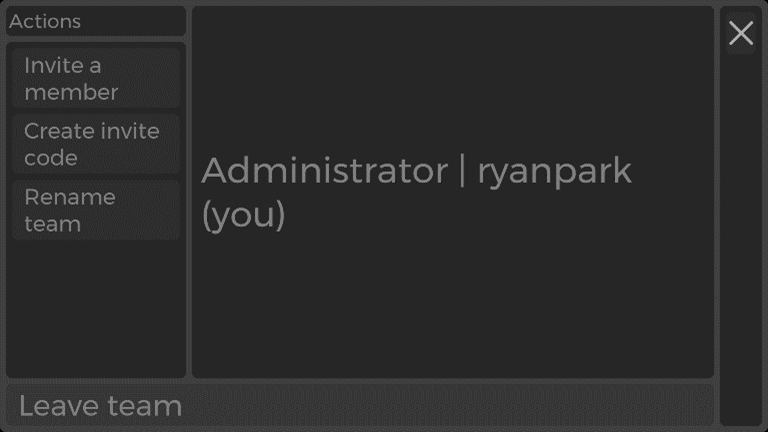
Figure 3
Responding to an Invitation to Join a Team
If you receive an invite, you can join by accepting the invite which can be found in Options -> Manage Teams -> View your team invites (Figure 4).
Figure 4