Tools
Transcript
The transcript function will automatically keep track of what is said in the meeting space when a user speaks. This can be sent directly to your email address by pressing the “Email Transcript” button (Figure 1)
Insights
The insight function will automatically save user’s comments that the system recognizes to be of importance. For example, questions or commands are saved onto insights.
This can be sent directly to your email address by pressing the “Email Insights” button (Figure 1)
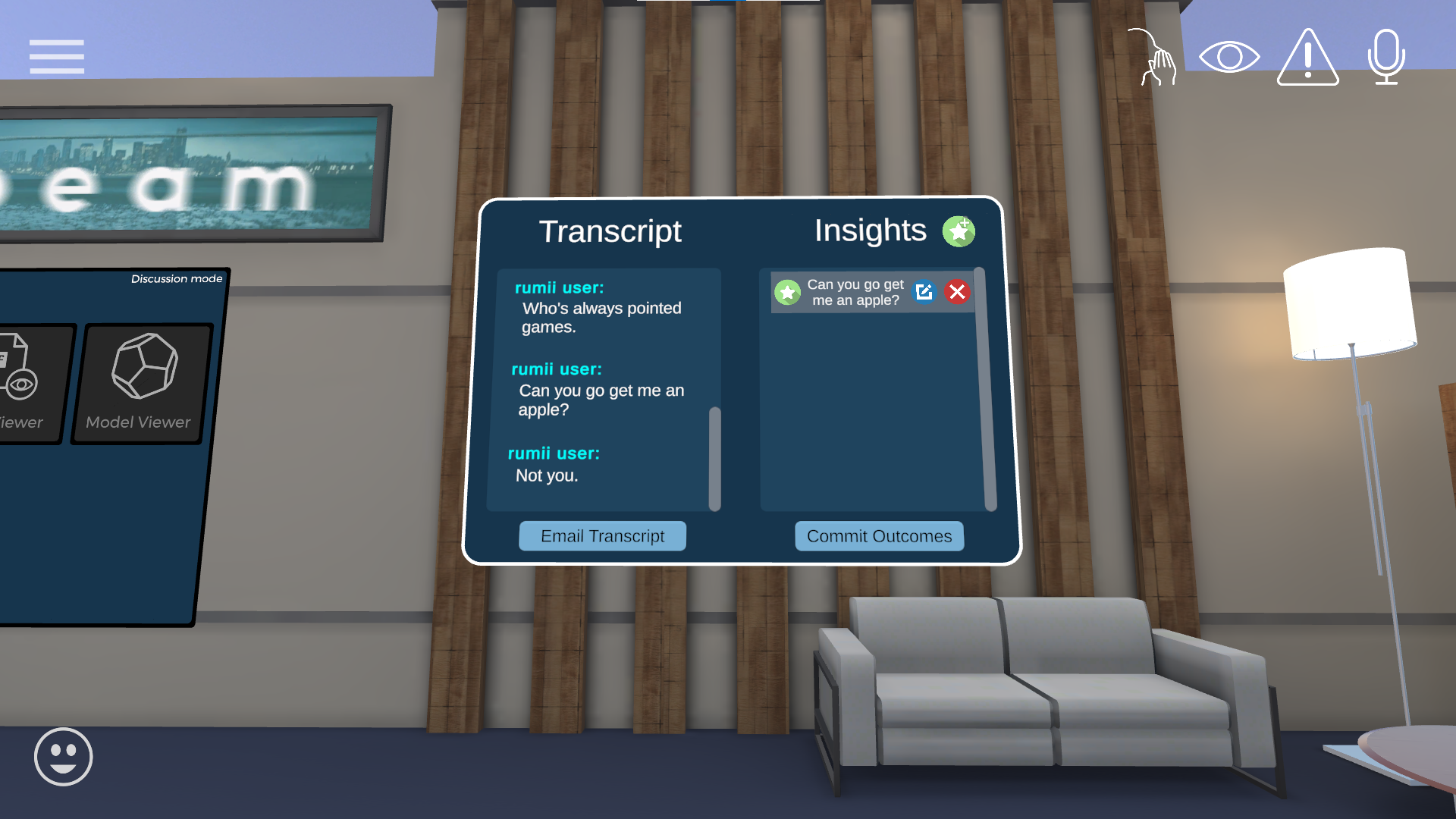
Figure 1
Whiteboard
The whiteboard is a freehand whiteboard for VR users and a draw pad for desktop users. For Vr users, the controllers mimic the action of marker onto whiteboard.
To draw on the whiteboard, approach the board and raise your controllers close to the board. A drawing tool will automatically appear in your hand.
To erase content on the whiteboard, face your palms upward near the board and an eraser will automatically appear in your hand.
Along the sides of the whiteboard, you will find color palletes. Select the desired color. The color of the marker will change and confirm the selection.
To save what has been drawn, press the “Email a Snapshot” button below the board in order to send it to the email address associated with your Moonbeam account.
Whiteboard is persistent; When leaving and re-entering room, the whiteboard will remain the same as the user leaves it
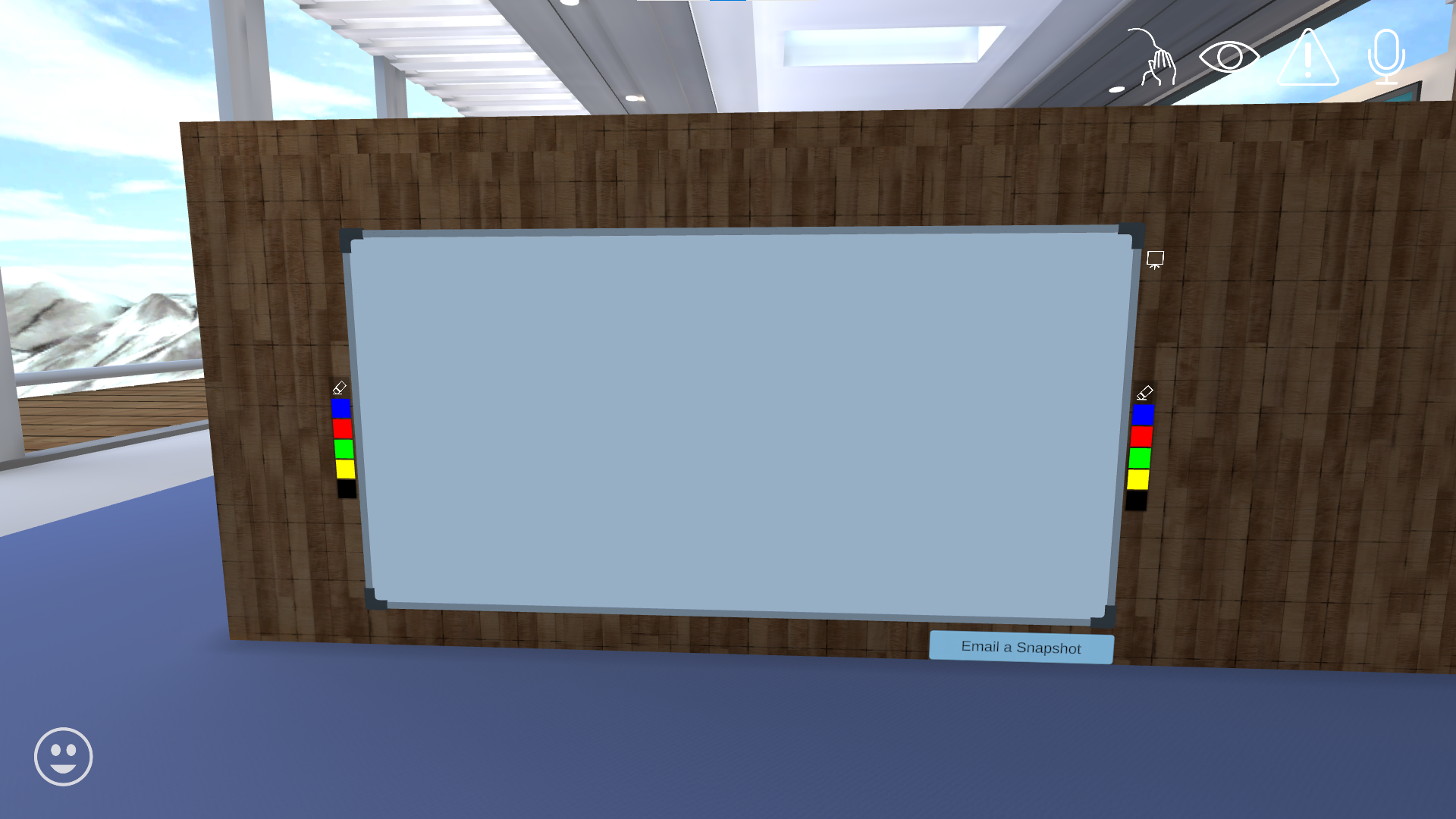
Figure 2
To use the eraser, press on the button as seen in Figure 3
For Desktop, you can also hold the spacebar and click to erase
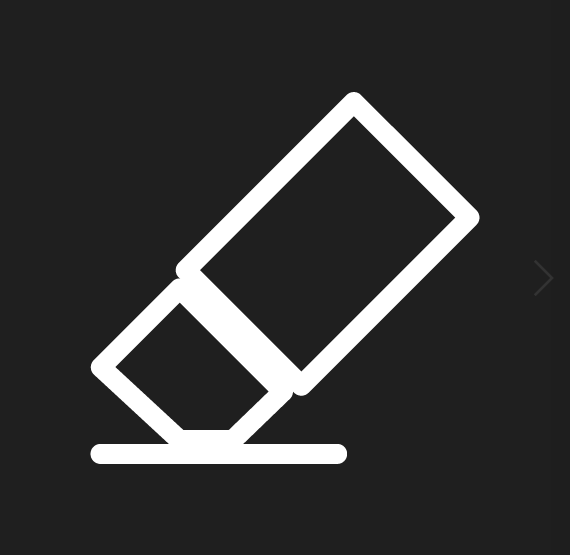
Figure 3
To clear the board, press on the button as seen in Figure 4

Figure 4
Sidebar
The sidebar feature allows users to have conversations apart from the other users in the room. While in a sidebar, the users’ conversation will not be heard by others in the room or recorded on the room’s transcript board, but you will still be able to hear users not in the sidebar. (Figure 5)
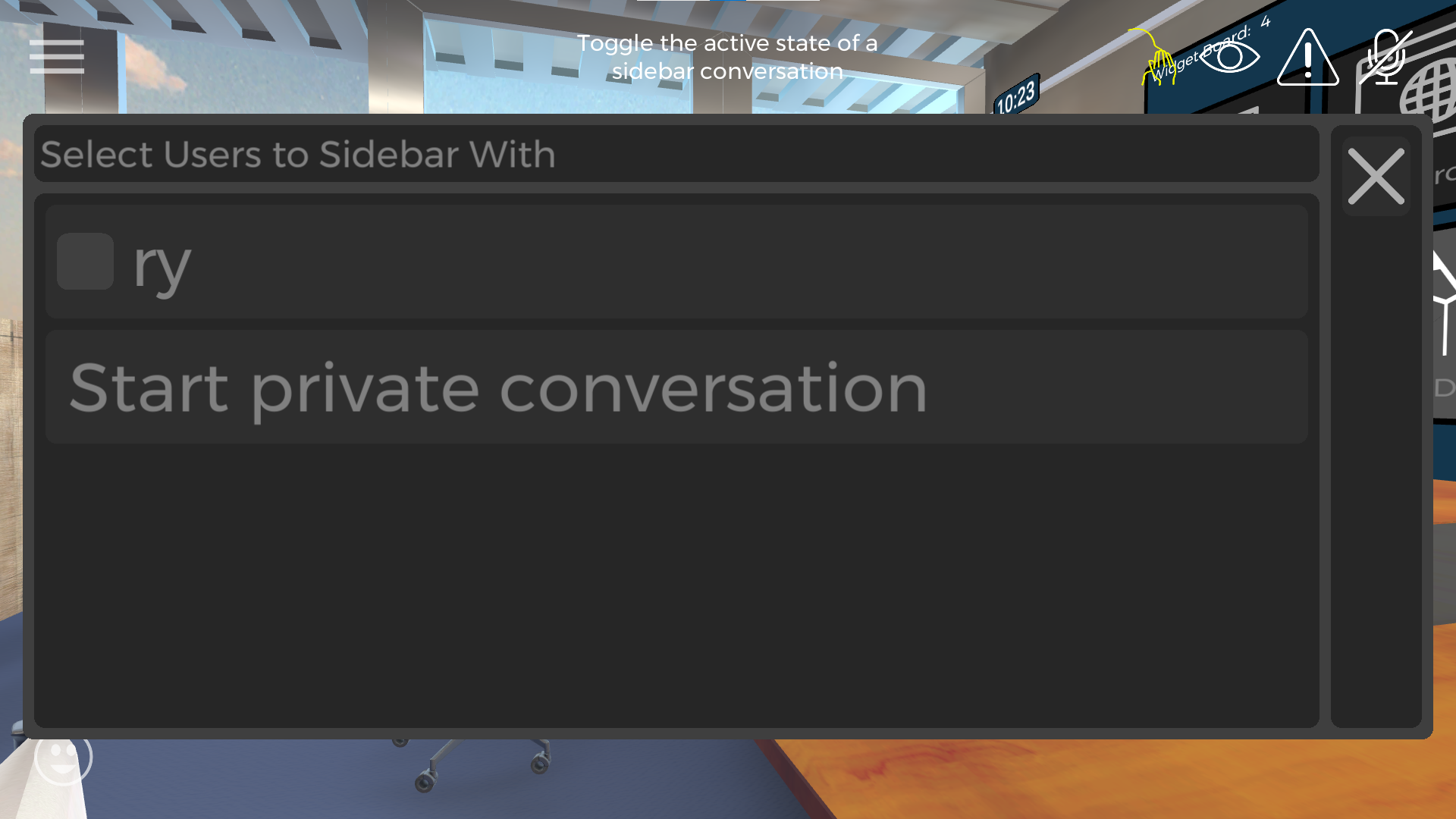
Figure 5
Widget Board
The widget board has these functions:
Button |
Action |
White Board |
Turns into a whiteboard on which users can write freely |
Web Browser |
Becomes a web browser that user can use to navigate content online |
Photo Viewer |
Allows pre-uploaded photos to be viewed on the widget |
PDF Viewer |
Allows pre-uploaded PDF files to be viewed on the widget |
Model Viewer |
Allows pre-uploaded 3D models to be spawned into meeting space |
3D Line Drawer |
Gives the user the ability to draw in 3D |
Note: To learn to pre-upload PDF/image/3D models refer to the section “Uploading Assets”.
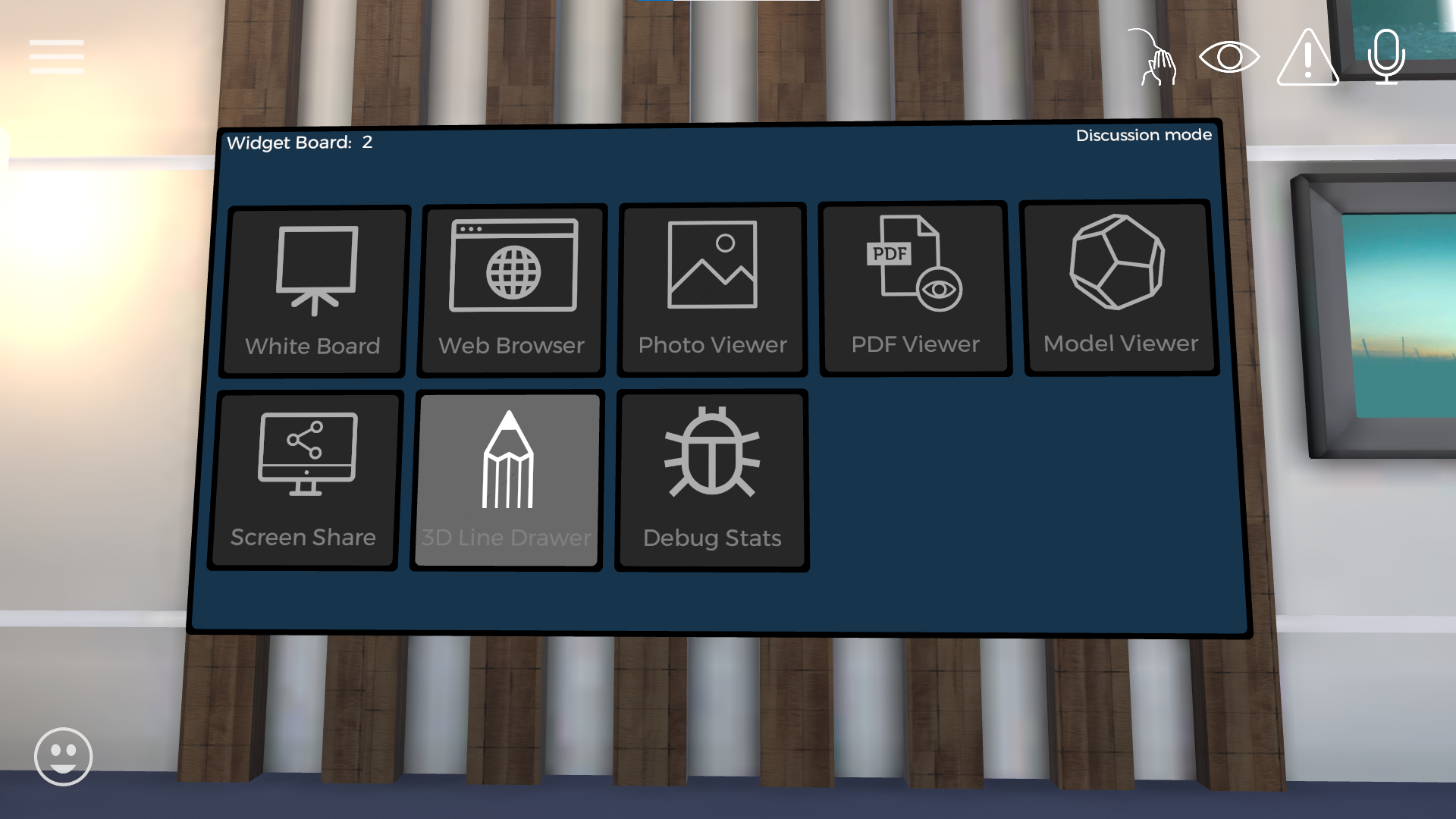
Figure 6
Initial web browser homepage can be changed in the Main Menu Options -> Settings -> Browser homepage.
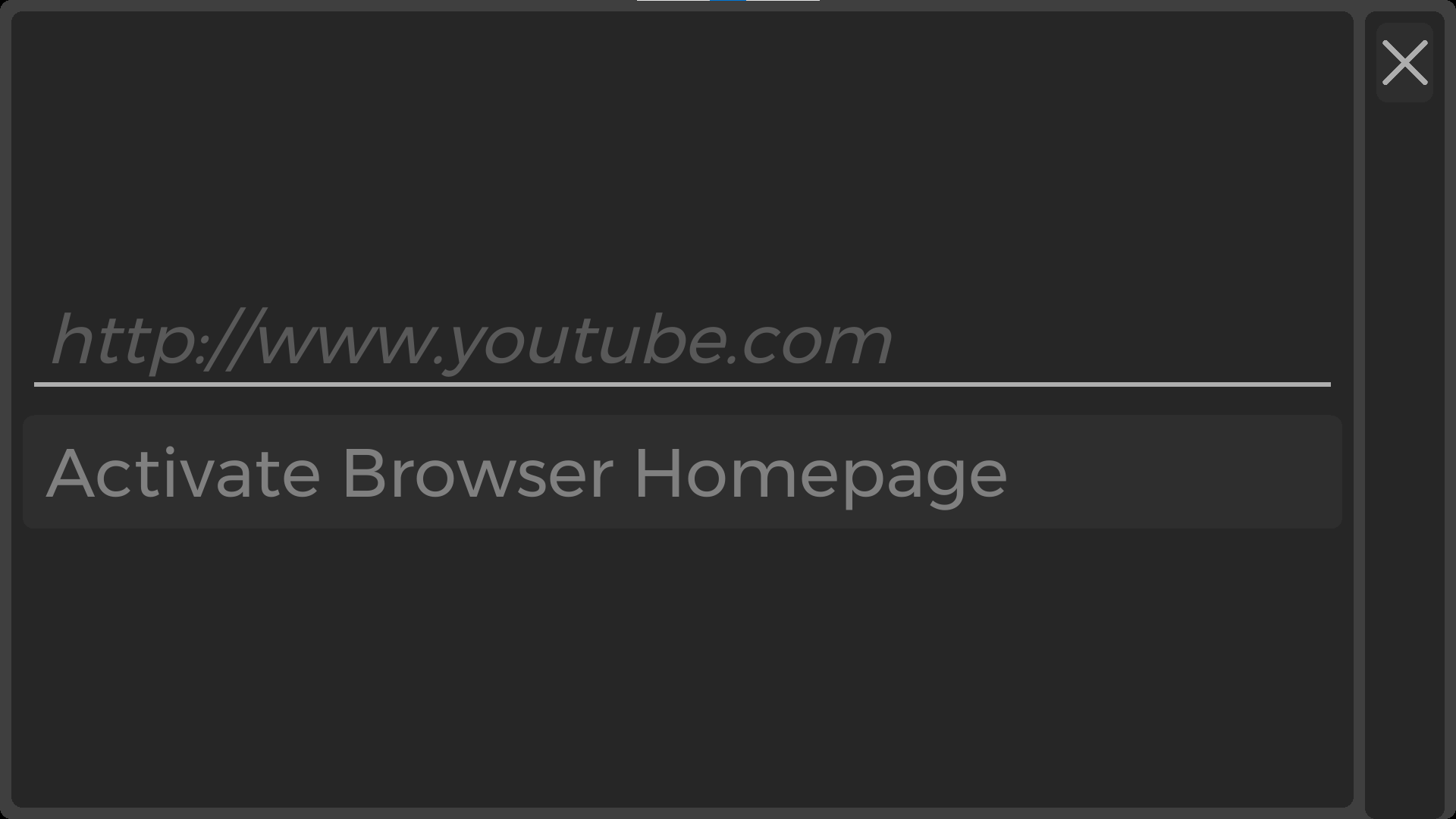
Figure 7
Sticky/Bulletin Board
The bulletin board tool can be used for organization of ideas by being able to create and place sticky notes onto a business model board.
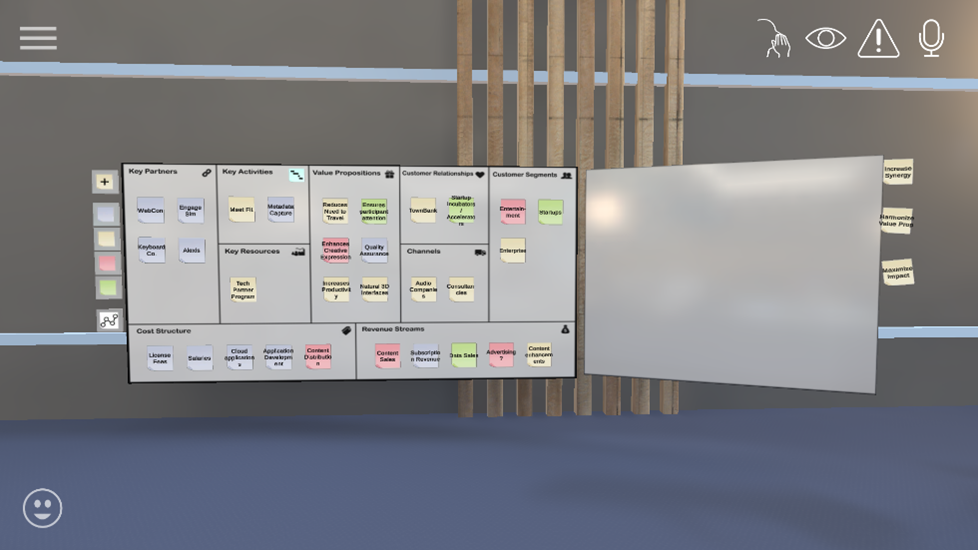
Figure 8
Each button on the tool bar (Figure 9) does the following:
Button |
Action |
Sticky note with the + sign |
This will upload a new sticky note where the user can type onto the note and change the color of the sticky note (Figure 9/10) |
Colored sticky notes |
Depending on the color the user selects, everything but the selected color note will turn invisible |
White graph |
Produces a 3D model graph example (Figure 11) that prototypes potential visualization of web diagrams in VR |
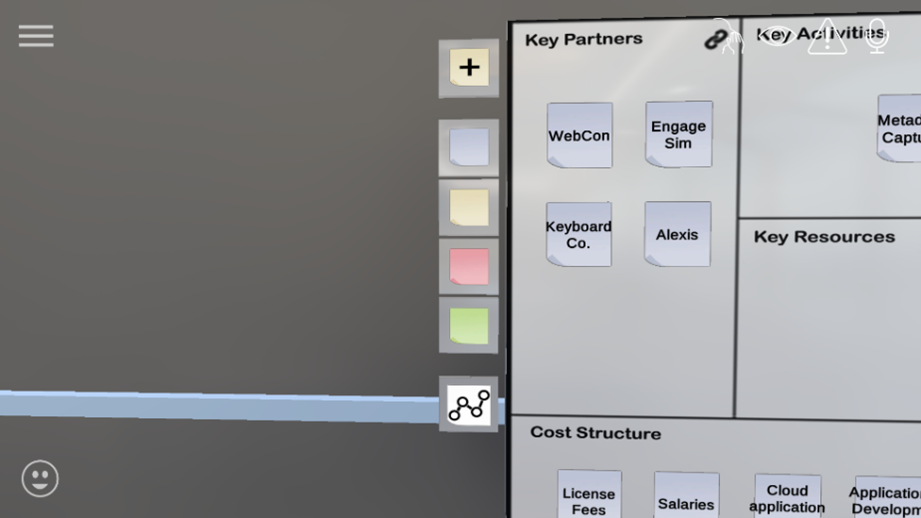
Figure 9
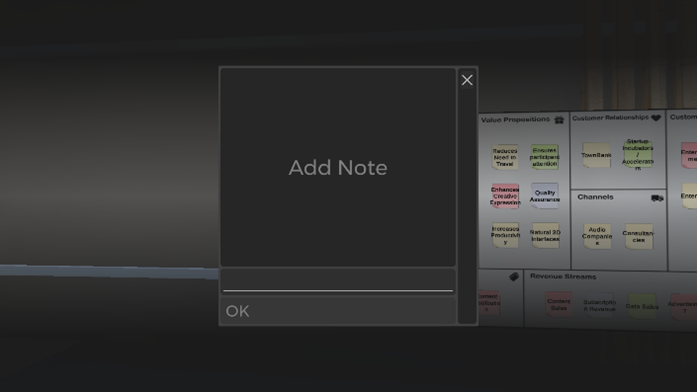
Figure 10
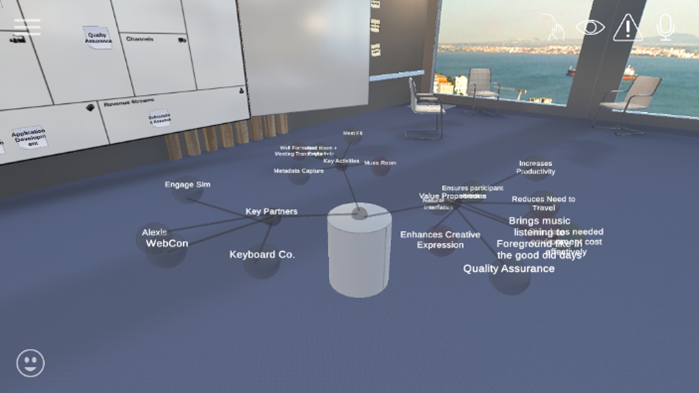
Figure 11
Screen Sharing
The screen sharing tool can be used to share the users desired screen.
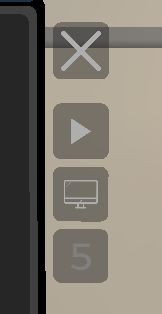
Figure 12
The first button “X” closes out of the screenshare
The second button is the play/pause button to play/pause the screenshare
The third button is the desktop button which if the user has multiple monitors can move the screenshare to a different monitor
The fourth button shows the frame rate the screenshare is displaying and can cycle from 5, 15, or 30